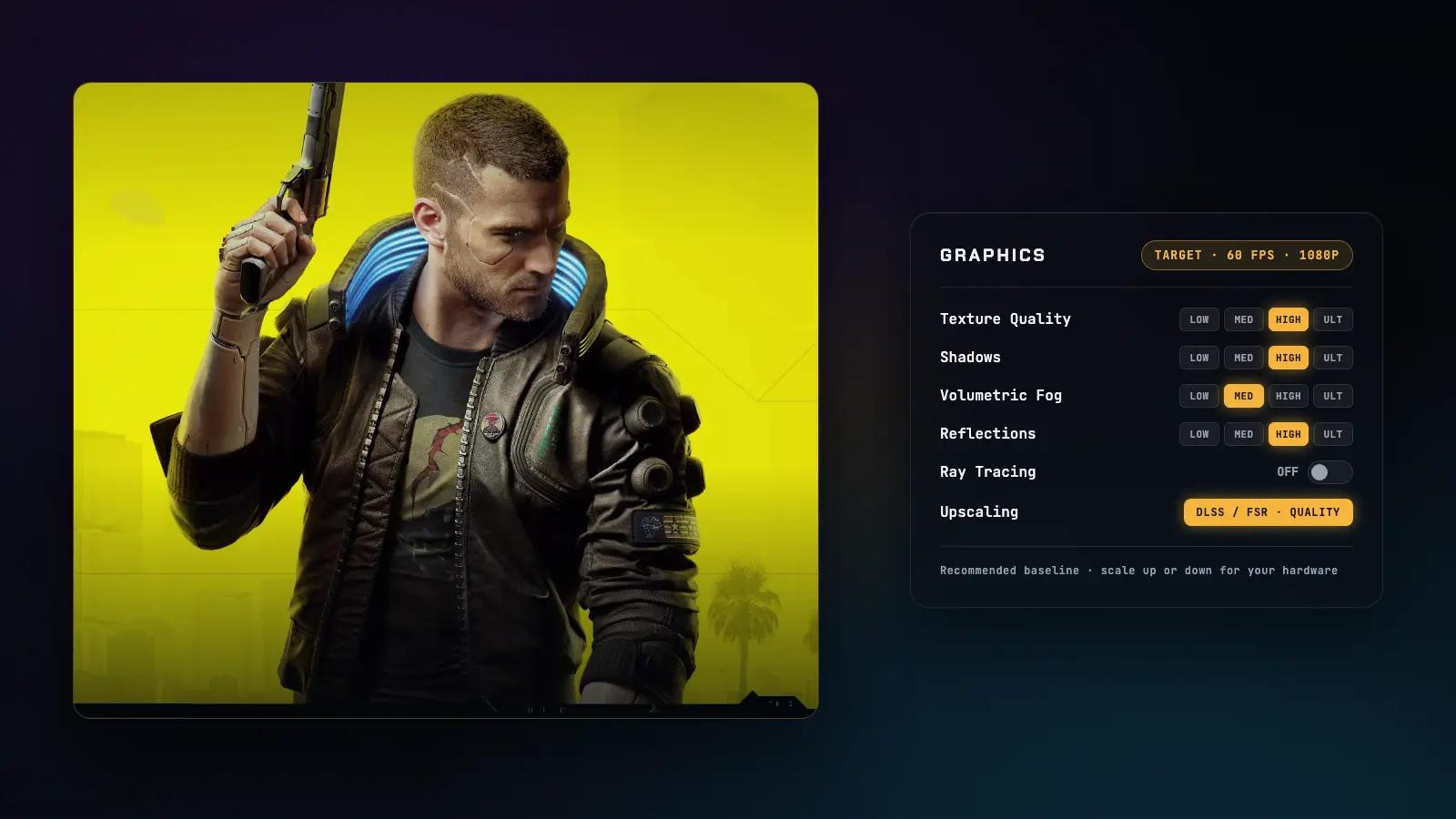

Cyberpunk 2077 has come a long way since launch, but the default settings still leave frames on the table for a lot of hardware. A couple of sliders are doing disproportionate damage, and most people never touch them. The good news is you only need to change a handful of things to get the game running comfortably. Find those, leave the rest near High, and go play.
One thing worth saying upfront: this guide targets Patch 2.31, the current live build as of mid-2026. CD PROJEKT RED has updated the game significantly since launch, and a lot of older optimization advice floating around was written for pre-2.0 builds. The requirements, the upscalers, and the way settings interact have all changed. If you have been following a launch-era guide, it is worth starting fresh.
If you are on a typical desktop card, a RTX 3060 12GB, a 3060 Ti, or a 4060, the picture is better than you might expect. You have more room to breathe than I do on my laptop, and you will likely get to a comfortable 60fps with less compromise. The tighter constraints in this guide come from my own machine, and I scale up for yours.
The machine I run this on, and what I'm aiming for
My gaming laptop runs an RTX 3060 Laptop GPU with 6GB of graphics memory, a Ryzen 7 5800H, and 16GB of RAM. That is what I build this advice around, and I scale it up for stronger cards and down for weaker ones from there.
The target is a stable 60fps at 1080p with no ray tracing, using DLSS Quality or FSR Quality to close the gap. That is realistic on this hardware with the right settings. Native 1080p at High is asking a bit much, but with upscaling it is achievable and the image quality trade-off at Quality mode is small enough that you will not miss it in motion.
One thing to be aware of: not every RTX 3060 laptop is the same. Higher-wattage variants can perform meaningfully better than lower-wattage ones in this game. CD PROJEKT RED's official recommended spec for 1080p High at 60fps is an RTX 2060 SUPER, so a 3060 laptop sits above that on paper, but power-limited configurations can behave more like a mid-tier card than the name suggests. Make sure you are running plugged in and on your laptop's highest performance profile before you judge the results.
For context on the wider range: older or weaker hardware, think 4GB cards, weak laptop GPUs, or integrated graphics, will need more aggressive cuts and Performance-mode upscaling, and should target 30 to 45fps rather than 60. On a stronger desktop card, RTX 4070 and above, you have the headroom for 1440p and selective ray tracing with DLSS Quality keeping things smooth.
The settings that actually move your framerate
These are the four areas I would change first. Everything else in the menu has a much smaller effect on frame rate, and most of it can stay near High without a fight.
Upscaling first. Before you touch anything else, turn on DLSS Quality if you have an Nvidia card, or FSR Quality if you do not. Cyberpunk 2077 Patch 2.31 supports DLSS, FSR, and XeSS natively. Upscaling, meaning the game renders at a lower resolution and reconstructs the image to your display resolution, is the single highest-leverage change you can make on this tier of hardware. DLSS Quality and FSR Quality both render at roughly two thirds of your target resolution and scale up from there. At 1080p the difference from native is subtle in motion. Enable it and leave it on for everything that follows.
On older or weaker hardware, go to Performance mode instead of Quality. The image softens noticeably, but the frame rate difference is substantial and on a 4GB card it is often the only way to stay playable.
Volumetric fog. This is the first thing I turn down. The fog simulation Night City runs is expensive out of proportion to what it looks like on screen. Dropping it from High to Medium is where most people find their first real chunk of frames. The city still looks atmospheric. You will not miss the full-quality fog once it is gone. Drop it to Low if you are still struggling, particularly on weaker hardware where every frame matters.
Crowd density. Dense city areas are where Cyberpunk eats frames hardest. The open-world foot traffic is CPU-intensive, and in a laptop configuration with a power-limited GPU you feel it more than a desktop benchmark average suggests. I would set this to Medium. The streets still feel alive. You will not be staring at an empty Night City. On weaker hardware, Low is fine and makes a real difference.
Shadows. Shadow quality and shadow range are both expensive and both easy to cut without obviously hurting the look of the game. Set shadow quality to Medium and shadow range to Medium. The lighting still holds up. Going lower starts to show at ground level in certain scenes, so Medium is where I stop.
Texture quality and the 6GB ceiling. This one is different from the others. Texture quality is not primarily a frames-per-second setting. It is a graphics memory setting. On a 6GB card, pushing textures to High or Ultra can overflow that memory budget, and when that happens the result is not a clean fps drop. It shows up as uneven traversal, delayed texture loads when you turn quickly, and staccato hitching when you drive fast through denser areas. None of that shows up clearly in a benchmark average. I keep textures at High and watch for symptoms. If the game starts feeling hitchy in busy districts or when opening menus, Medium is the sensible step down.
On a stronger desktop card with 12GB of graphics memory, texture quality is genuinely free. Push it to High or Ultra and leave it there. On a 4GB card, Medium is probably where you want to be from the start.
Ray tracing: leave it off. Ray tracing on a 6GB laptop GPU will cost you more frames than you can spare. The official RT minimum spec is an RTX 2060 at 1080p targeting only 30fps on a Low RT preset. A 3060 laptop in a power-limited configuration is not in comfortable territory here. On common desktop cards like the RTX 3060 12GB or RTX 4060, RT still comes with a heavy cost at 1080p and I would not recommend it there either. If you are on an RTX 4070 or above, selective ray tracing at 1440p with DLSS Quality is worth exploring, but path tracing is a stronger-card-only option and nowhere near recommended for most people reading this.
Everything else in the menu, briefly
Screen-space reflections can go to Medium. The reflections on wet streets take a visible quality step at Ultra, but Medium still looks reasonable and costs less. Ambient occlusion, the soft shading where objects meet surfaces, is fine at Medium and barely noticeable compared to High in motion.
Level of detail and cascaded shadows range can both stay at Medium on a laptop, or High on a stronger desktop. These affect how the game renders distant geometry and shadow geometry, and Medium is a fair balance between visual quality and frame budget.
The cosmetic group. Motion blur, film grain, chromatic aberration, and depth of field are all personal taste settings that cost little to nothing in frames. Turn them off if you dislike the look, leave them on if you do not notice them. They are not where your frames are going.
Screen space global illumination replaced older ambient occlusion options in the 2.x generation. On a 6GB laptop GPU, Medium is the right call. High and Ultra push the rendering cost up noticeably for a lighting improvement that is subtle in fast-paced traversal.
Everything not mentioned here, lens flare, color precision, image sharpening, can stay at their default or High values. They are not significant contributors to your frame budget.
Driver, storage, and a frame-generation note
Keep your graphics driver current. DLSS and FSR support in Cyberpunk has improved across driver generations, and running an outdated driver is a quiet way to lose quality and occasionally frames. The current Nvidia driver as of mid-2026 includes improvements relevant to DLSS 3.x behaviour. AMD users on FSR should also stay updated.
Storage matters for this game. CD PROJEKT RED's official modern requirements list an SSD as a requirement, not a recommendation. Cyberpunk streams a large open world continuously as you move through Night City, and if the game is installed on a spinning hard drive or a very slow SATA SSD, the result can be hitching during traversal that settings changes will not fix. If you are seeing persistent streaming hitches and your framerate looks otherwise fine, storage is worth checking. A basic NVMe SSD is the right home for this game.
One note on frame generation: Patch 2.31 includes a fix for a specific frame generation bug, a permanent white screen triggered when entering a braindance sequence with Frame Generation enabled. That is a good sign that edge cases in this feature are still being ironed out. Frame generation is an RTX 40-series feature anyway, so it is not relevant to the RTX 3060 laptop path, but if you are on a stronger 40-series desktop card and using it, staying on the current patch matters.
What to expect after these changes
With upscaling on Quality, volumetric fog and shadows at Medium, crowd density at Medium, and textures at High, a 6GB RTX 3060 laptop GPU should be in the range of a stable 60fps through most of Night City at 1080p. Dense areas and scripted scenes will still push harder than open streets, and a laptop running below its full power limit will feel that more than a desktop equivalent. The setting combination above is where I land on mine, and it holds well enough that the game feels like the experience it was meant to be rather than a compromise.
On a typical desktop card with 12GB of graphics memory, the same preset with textures raised to High or Ultra and the same upscaling should hold 60fps more comfortably, with less sensitivity to crowd-heavy areas. The gap between a power-limited laptop and a desktop card matters here.
On older or weaker hardware, treat 45fps as the realistic ceiling at 1080p with Performance-mode upscaling and more aggressive cuts. Integrated graphics at native 1080p is not a workable target for this game in the current build.
These settings reflect the game as it stands on Patch 2.31. CD PROJEKT RED still ships meaningful updates, and any future patch that touches VRAM behaviour, upscaler integration, or ray tracing presets would be worth a re-check against this advice.
Common questions
Can Cyberpunk 2077 run on a GTX 1650 in 2026?
It can run, but it needs help. A GTX 1650 has 4GB of graphics memory and falls below the current official recommended spec, so Performance-mode upscaling with FSR or XeSS is essential, and settings like shadows, fog, and crowd density should be cut aggressively. Targeting 30 to 45fps is realistic. Current testing on Update 2.3-era builds with modern upscalers supports this approach, though exact framerate depends on the specific scene and preset.
Does Cyberpunk 2077 run well on Steam Deck?
The Steam Deck uses integrated graphics with a shared memory pool, which puts it well below the official recommended spec and outside the scope of this PC guide. Valve has published Steam Deck compatibility ratings, and the game does have a Linux-compatible build, but settings and targets for that platform are a separate conversation from a desktop or laptop PC setup.